Canvas to VisualBrush
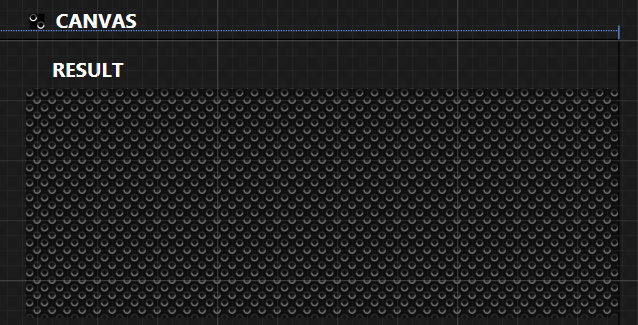
For fill a Control you can use a canvas transformed to VisualBrush
If you change part of canvas you modify directly the render of VisualBrush
For this Canvas (set outside of window)
<Canvas x:Name="back"
        Height="12"
        Width="12"
        HorizontalAlignment="Left"
        Margin="-45,21,0,0"
        VerticalAlignment="Top"
        Background="Black">
    <Ellipse Height="6"
                Canvas.Left="0"
                Canvas.Top="0"
                Width="6">
        <Ellipse.Stroke>
            <LinearGradientBrush EndPoint="0.5,1"
                                    StartPoint="0.5,0">
                <GradientStop Color="#FF4C4C4C"
                                Offset="0.01" />
                <GradientStop Color="White"
                                Offset="1" />
                <GradientStop Color="White"
                                Offset="0.538" />
                <GradientStop Color="#FF4C4C4C"
                                Offset="0.472" />
            </LinearGradientBrush>
        </Ellipse.Stroke>
    </Ellipse>
    <Ellipse Height="6"
                Canvas.Left="6"
                Canvas.Top="6"
                Width="6">
        <Ellipse.Stroke>
            <LinearGradientBrush EndPoint="0.5,1"
                                    StartPoint="0.5,0">
                <GradientStop Color="#FF4C4C4C"
                                Offset="0.01" />
                <GradientStop Color="White"
                                Offset="1" />
                <GradientStop Color="White"
                                Offset="0.538" />
                <GradientStop Color="#FF4C4C4C"
                                Offset="0.472" />
            </LinearGradientBrush>
        </Ellipse.Stroke>
    </Ellipse>
</Canvas>
Create VisualBrush in Window.Resource
<Window.Resources>
    <VisualBrush x:Key="background"
                    Visual="{Binding ElementName=back}" />
</Window.Resources>
And using
<Rectangle Fill="{StaticResource background}"
            Margin="39,39,0,39"/>
If you want to specify using of this VisualBrush
| Stretch= »None » | Define how the render is made |
| TileMode= »Tile » | Define how the render of each object is made |
| AlignmentX= »Left » | First aligment on X on render |
| AlignmentY= »Top » | First aligment on Y on render |
| ViewportUnits= »Absolute » | Type of viewport unit, if absolute no dependency of control, otherwise else |
| Viewport= »0,0,12,12″ | According of ViewportUnit definition |
Sample
<VisualBrush x:Key="background"
                Visual="{Binding ElementName=back}"
                Stretch="None"
                TileMode="Tile"
                AlignmentX="Left"
                AlignmentY="Top"
                Viewport="0,0,12,12"
                ViewportUnits="Absolute" />
Result